
Getting Started with Company Creation in ERPNext
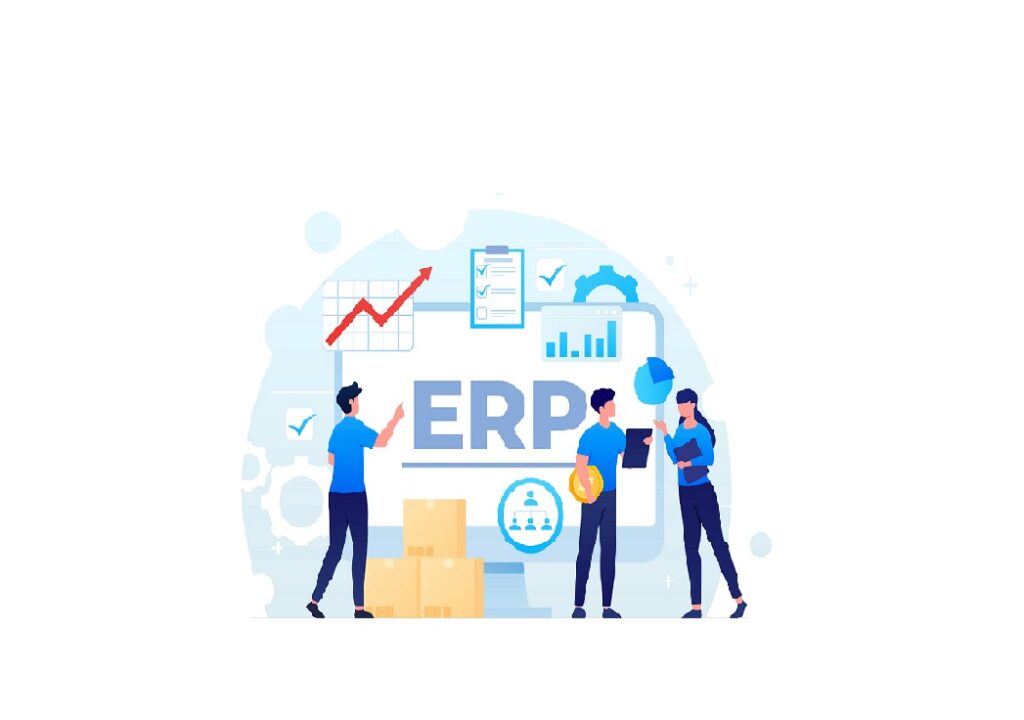
If you’re new to ERPNext, one of the first things you’ll need to do is create a company. This is a foundational step that unlocks the rest of ERPNext’s powerful features — from accounting to inventory, HR, sales, and beyond.
In this guide, we’ll walk you through:
- Why company creation matters
- Step-by-step guide to setting it up
- Pro tips to get it right the first time
Why Company Creation is Crucial
In ERPNext, a Company acts as the top-level legal and operational entity. It defines the framework for:
- Chart of Accounts – Your entire financial structure
- Fiscal years and tax rules – Compliance and reporting
- Warehouses and branches – Physical locations and inventory
- HR policies, payroll, and users – People management
Without a company, none of the ERP modules will be activated — it’s like the master switch that powers everything else.
Step-by-Step Guide to Create a Company in ERPNext
1. Navigate to Company Doctype
Go to: Home > Accounting > Company > New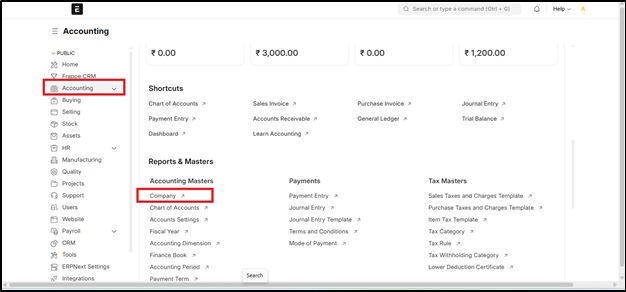

Or just search “New Company” from the Awesome Bar.
2. Fill in Basic Company Information
Here’s what you’ll need to enter:
- Company Name – Use your legal entity name (exactly as registered)
- Default Currency – Set your operational currency (INR, USD, EUR, etc.)
- Abbreviation – Used to prefix accounts, warehouses, and more (e.g., “ABC” for ABC Pvt Ltd)
- Default Country – Affects compliance requirements, tax templates, and localization
Pro Tip: Pick an abbreviation that’s short and easy to remember. You won’t be able to change it later, so choose wisely!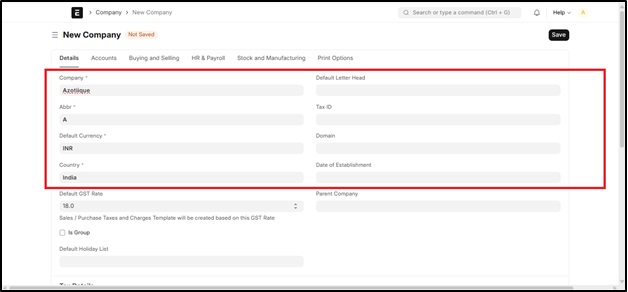
3. Setup Chart of Accounts
You have two options:
- Use a standard template – ERPNext provides country-specific templates
- Import a custom Chart of Accounts – If you have specific requirements
This step links your company with its accounting backbone. Make sure you match this to your compliance and reporting needs.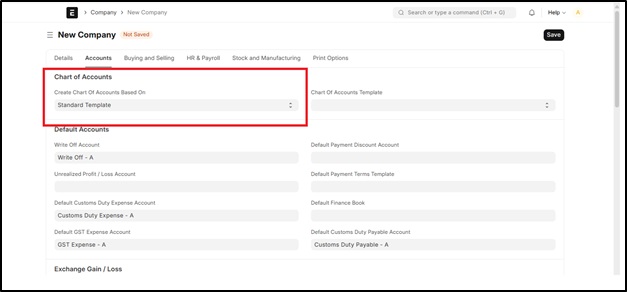
4. Configure Fiscal Year, Tax ID, and Defaults
Complete these important fields:
- Default Fiscal Year – Your financial year start and end dates
- Company Tax ID – Your GST, VAT, or EIN number (if applicable)
- Domain Setup – Choose your business domain (Manufacturing, Retail, Services, etc.)
Once saved, ERPNext will automatically create default ledgers, cost centers, and foundational records.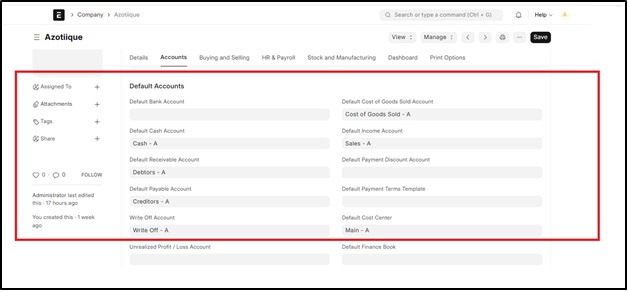
What Happens After Creation?
Once the company is created, you’re ready to start using ERPNext:
Immediate Next Steps:
- Add customers, suppliers, and items to your database
- Configure users and assign roles within the company
- Begin setting up workflows like invoices, purchase orders, and journal entries
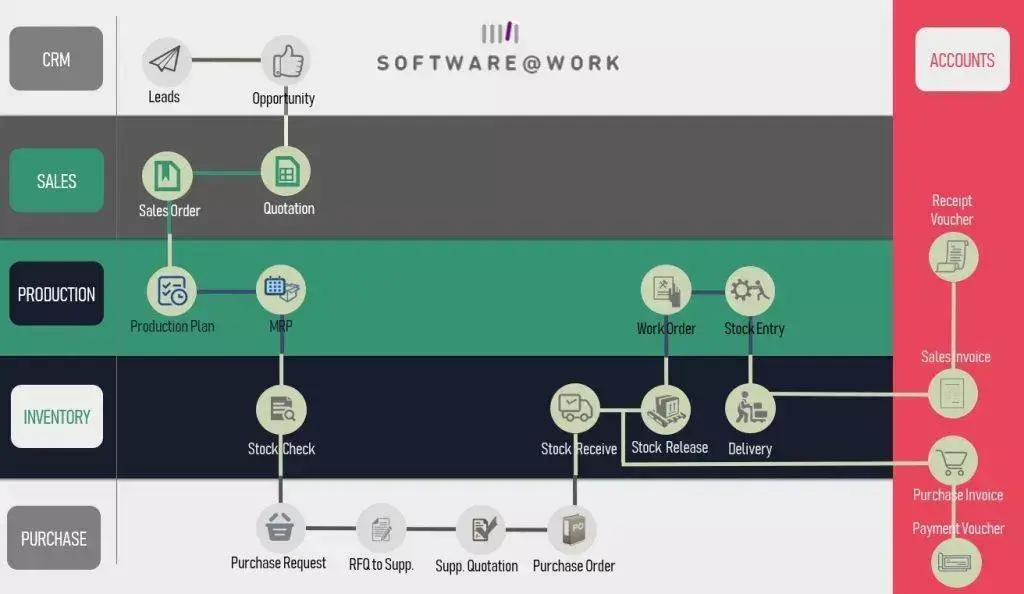
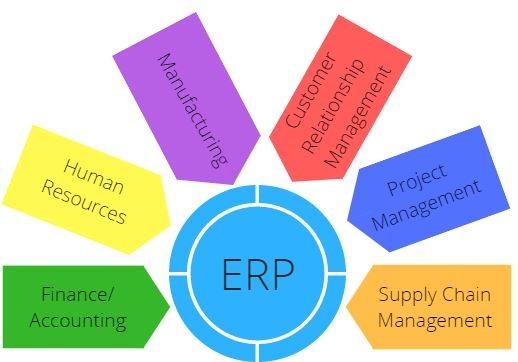
- Start using modules like CRM, Projects, HR, Manufacturing, and more
Enhanced Capabilities:
- Branch creation for multi-location businesses
- Inter-company transactions for group entities
- Multi-currency operations and consolidated reporting
- Advanced permissions and access control
Bonus Tips for Success
Managing Multiple Companies
ERPNext supports multi-company setups natively. You can:
- Run multiple legal entities in one system
- Enable inter-company transactions
- Generate consolidated reports across entities
Naming Series Configuration
Use Naming Series to structure your document IDs systematically:
- Example: INV-ABC-.YYYY.- creates invoices like INV-ABC-2024-00001
- Maintains consistency across all transactions
- Makes auditing and tracking easier
User Permissions Best Practices
Set up user permissions carefully to:
- Prevent cross-company access issues
- Maintain data security and privacy
- Ensure users only see relevant information
Data You Can’t Change Later
Be extra careful with these fields:
- Company abbreviation
- Base currency
- Country selection
Double-check before hitting save!
Final Thoughts
Creating your company in ERPNext is the first step to ERP success. Taking the time to do it right saves hours of rework later. Whether you’re a startup, SME, or enterprise, ERPNext scales with you from day one.
The platform’s flexibility means you can start simple and expand as your business grows. From basic invoicing to complex manufacturing workflows, it all begins with a properly configured company.
Ready to get started? Build your company on ERPNext and unlock the power of integrated business management today with Software@Work (India), the top ERPNext service provider.
Frequently Asked Questions (FAQ)
1. What is a Company in ERPNext?
A Company in ERPNext is the primary legal and operational entity that forms the foundation of the ERP system. It controls accounting structures, the chart of accounts, fiscal years, taxation, warehouses, HR settings, and user access. Without creating a company, the ERPNext modules cannot be used.
2. Is it mandatory to create a Company before using ERPNext?
Yes, creating a company is mandatory in ERPNext. All ERPNext modules, such as Accounting, Inventory, HR, CRM, Sales, and Manufacturing, remain inactive until at least one company is created in the system.
3. Can I change the Company Name after creation in ERPNext?
Yes, the Company Name can be edited later if required. However, the Company Abbreviation cannot be changed once the company is created, so it must be selected carefully during the initial setup.
4. What is the Company Abbreviation used for in ERPNext?
The Company Abbreviation is used as a prefix for accounting ledgers, warehouses, cost centers, and document naming series. It helps uniquely identify records belonging to a specific company and plays a key role in reporting and auditing.
5. Can I change the Chart of Accounts after creating the company?
You can modify the Chart of Accounts after company creation by adding, editing, or deleting accounts. However, switching to a completely different accounting template later may require manual adjustments, so it’s best to choose the correct template initially.